updraft
Hold a key, talk, let go: the words land at your cursor.
Windows installs without admin. Mac needs macOS 13.3 or newer.
new email
Crew is on site at 8. The coil is staged and the line set is 25 feet
The notch opens into a voice wave while you talk.
- idle: a thin line
- point at it
- hold the key
- 12:05on a call
updraft in short
Free dictation software for Windows and Mac. Dictation, meeting recording and notes, clipboard history and quick AI rewrites in one app that runs on your own computer. Speech is turned into text on your PC, so your voice never leaves it.
runs on your pc
Speech to text happens locally, on your GPU if you have one.
words in about 0.3 s
Optional live dictation on an NVIDIA GPU shows words as you say them.
knows trade talk
Tested on HVAC terms and Daikin model numbers.
windows and mac
Windows, and Apple Silicon Macs on macOS 13.3 or newer. A few extras are Windows-only for now.
dictation
Talk anywhere you’d type: email, Microsoft Word, Teams, a work order, a text box on a website. A small pill shows it listening, then types the text right where your cursor is. That’s voice typing in any app.
hands-free
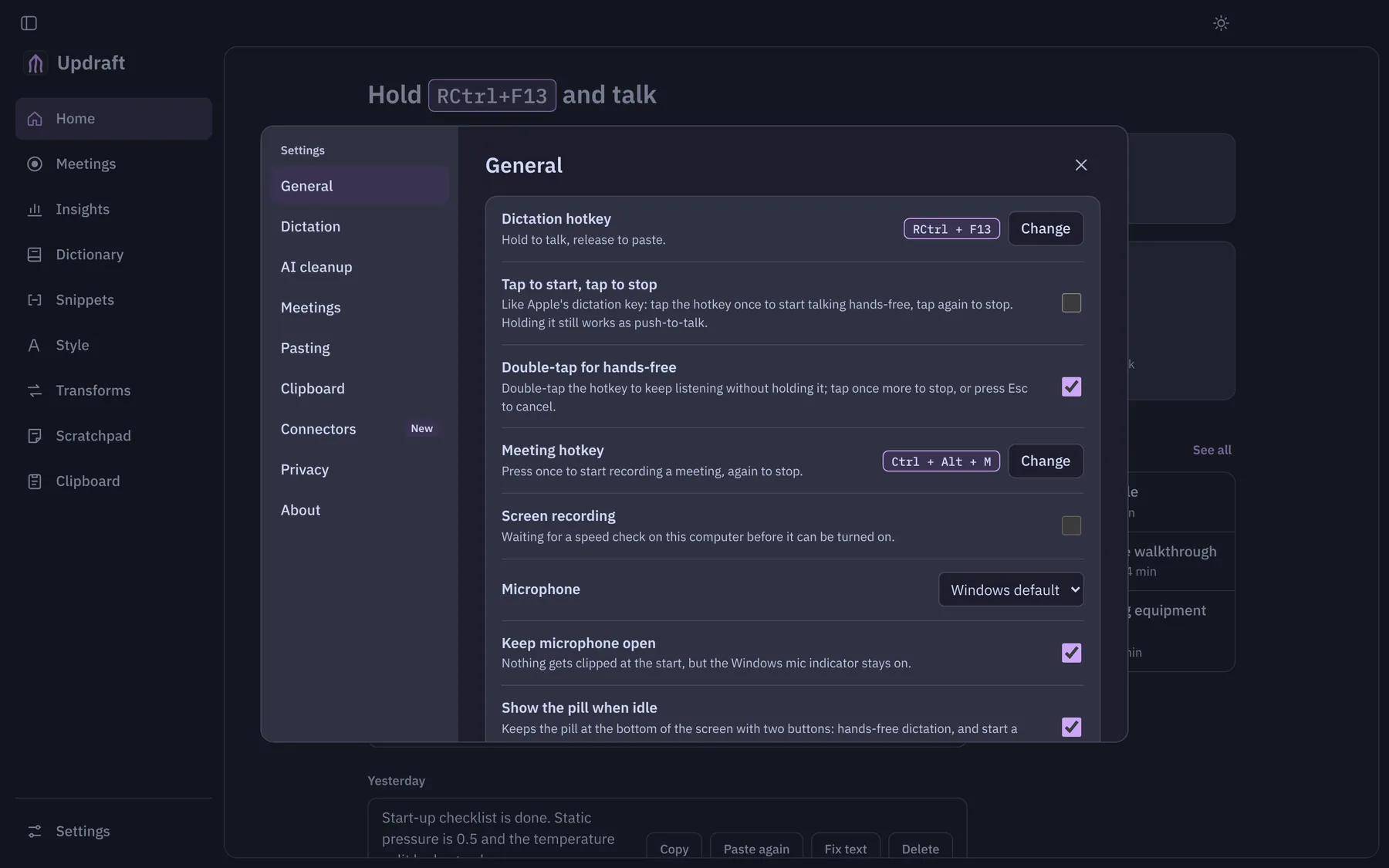
Double-tap the hotkey and it keeps listening without holding anything. Tap again to paste, or Esc to cancel.
live dictation
Optional and still being tuned. Your words show in a little box above the pill while you talk; on an NVIDIA GPU they appear about 0.3 seconds after you say them.
ai cleanup
Optional. Claude fixes punctuation, drops the “ums” and tidies it up before it’s typed. Only the text is sent, never your voice.
style per app
Pick a tone (Formal, Clear or Casual) for personal messages, work messages, email and everything else.
dictionary
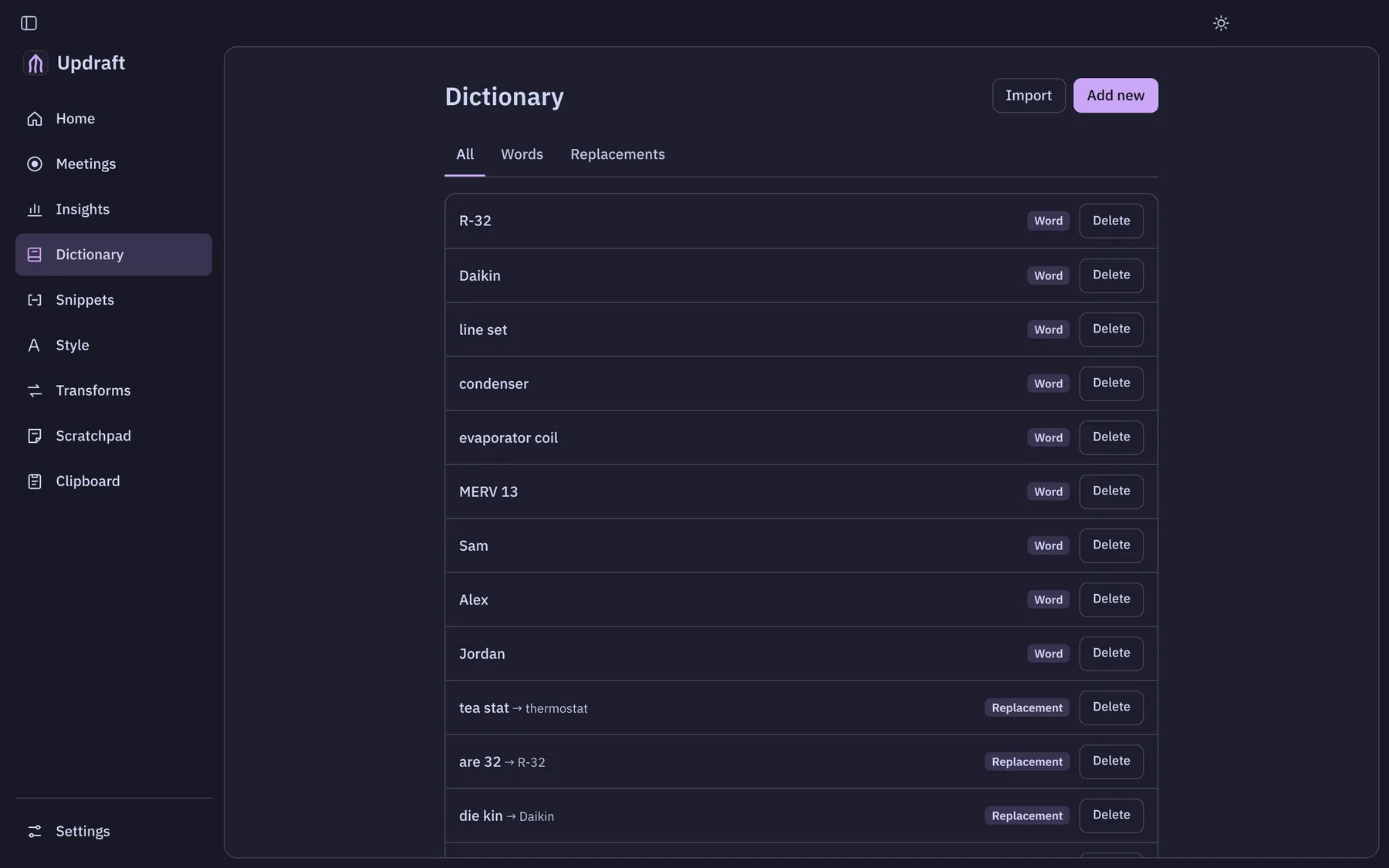
Teach it names and trade terms so they’re spelled right, and set replacements for words it keeps hearing wrong.
snippets
Say a short trigger and get a whole block of text: an address, a sign-off, a standard reply.
other languages
Spanish and other languages, or let it detect the language on its own.
history you can reuse
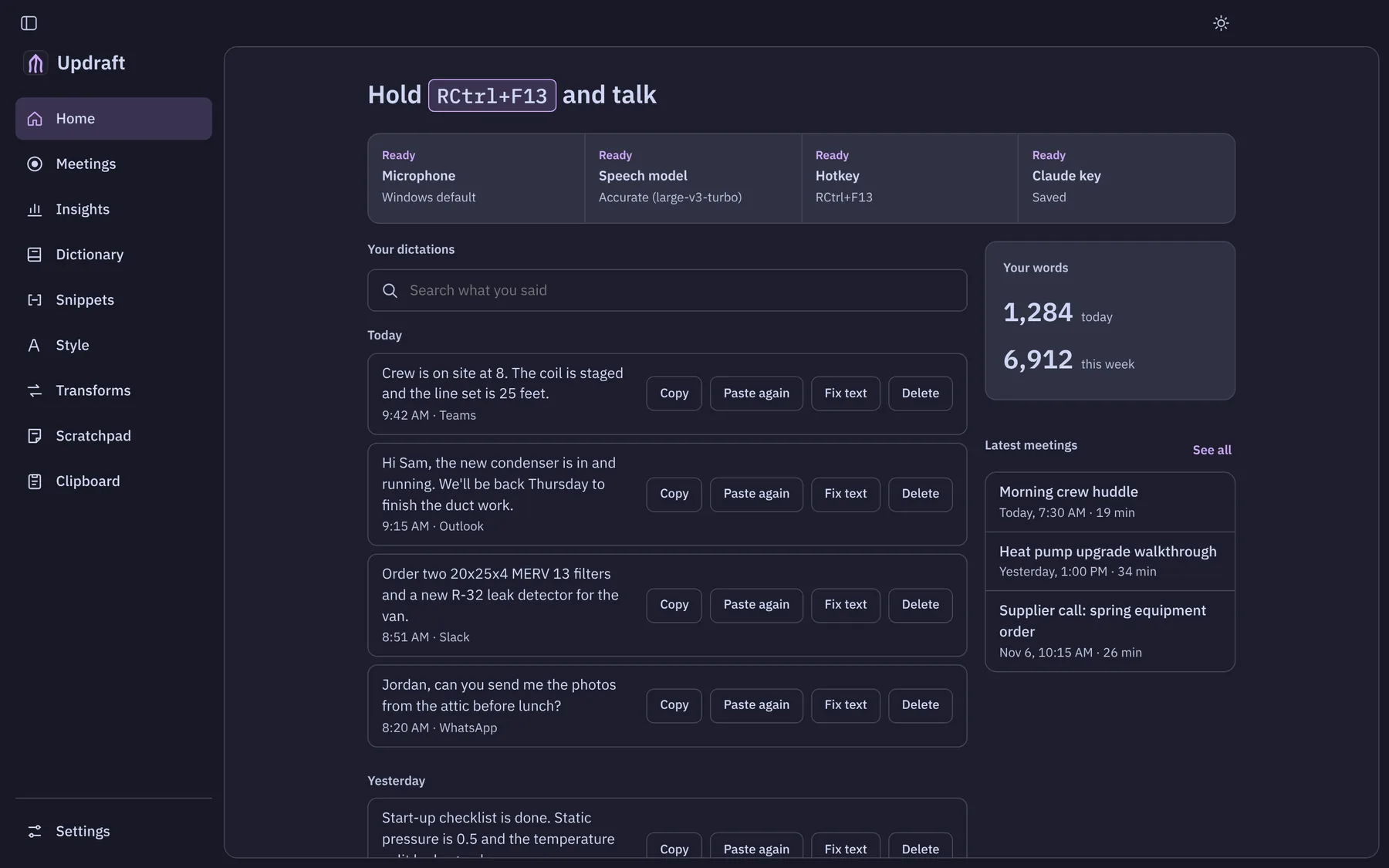
Every dictation is saved with the app it went into. Search it, copy it, paste it again, or retry one that failed. Switched apps mid-sentence? It copies the text instead of pasting in the wrong place.
transforms
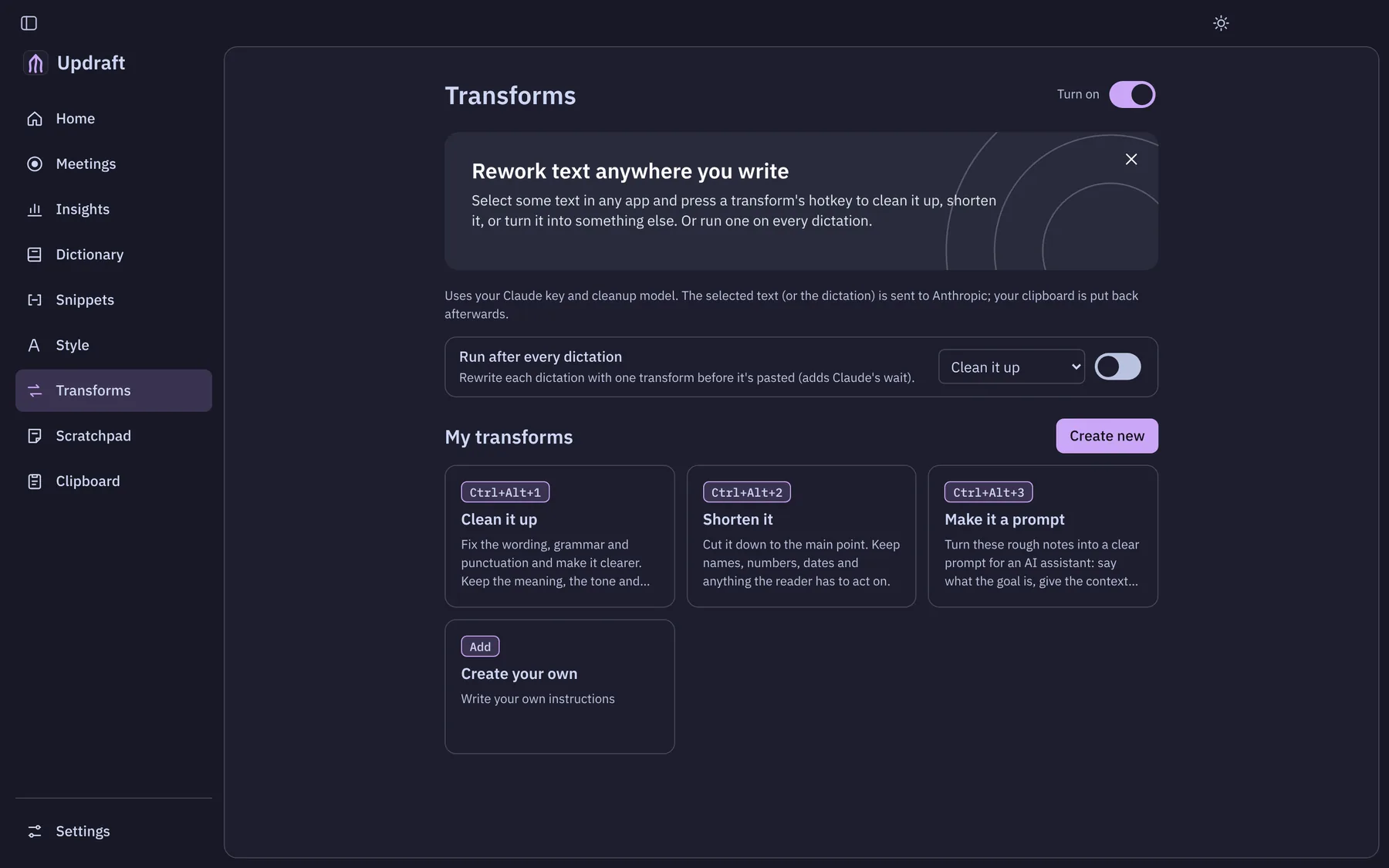
Highlight it, hit a key, it’s rewritten. Claude rewrites the selection in any app, pastes it back over the original and puts your clipboard back the way it was.
- Ctrl+Alt+1
Clean it up
- Ctrl+Alt+2
Shorten it
- Ctrl+Alt+3
Make it a prompt
- your own
Write your own and give it a hotkey
meetings
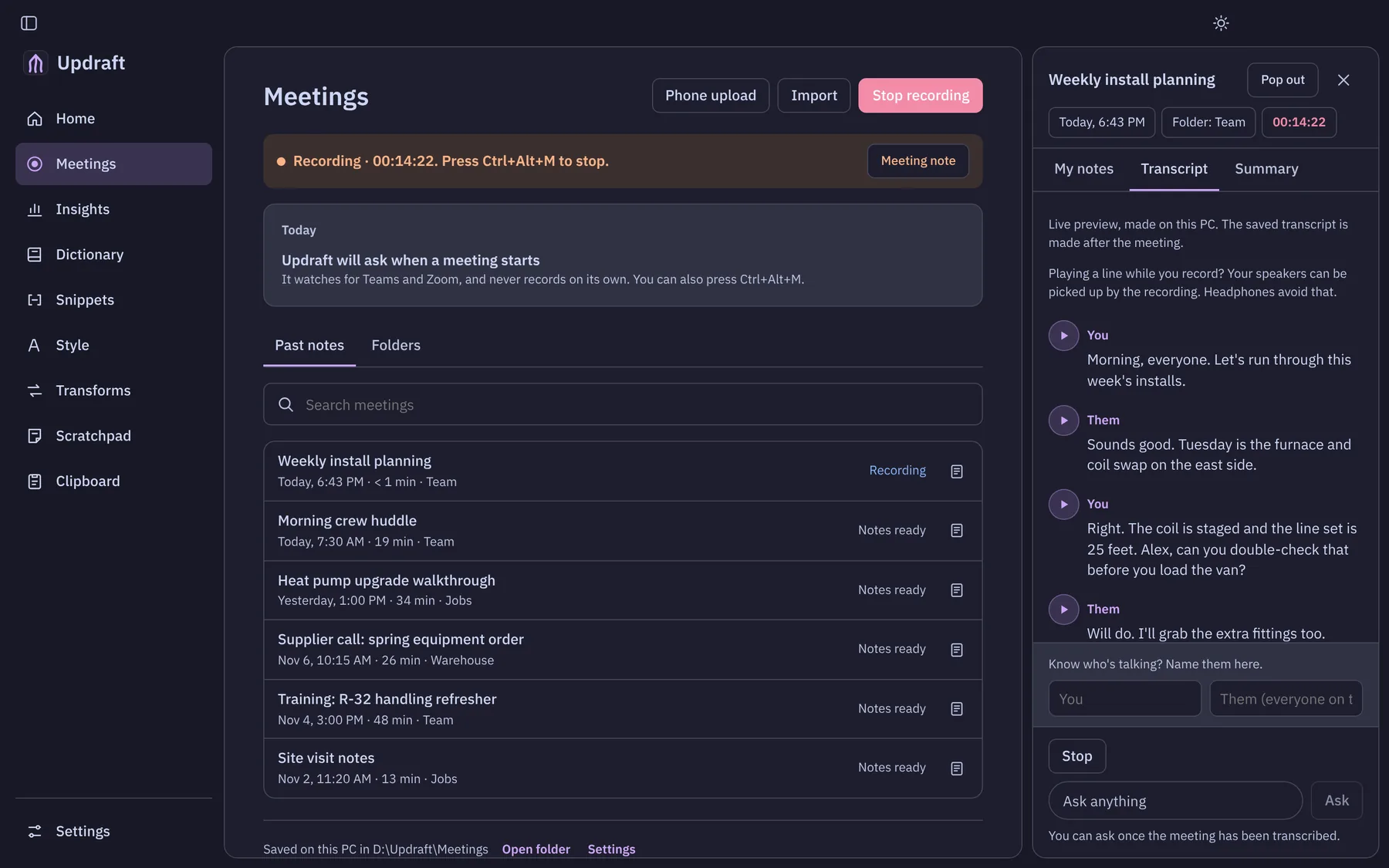
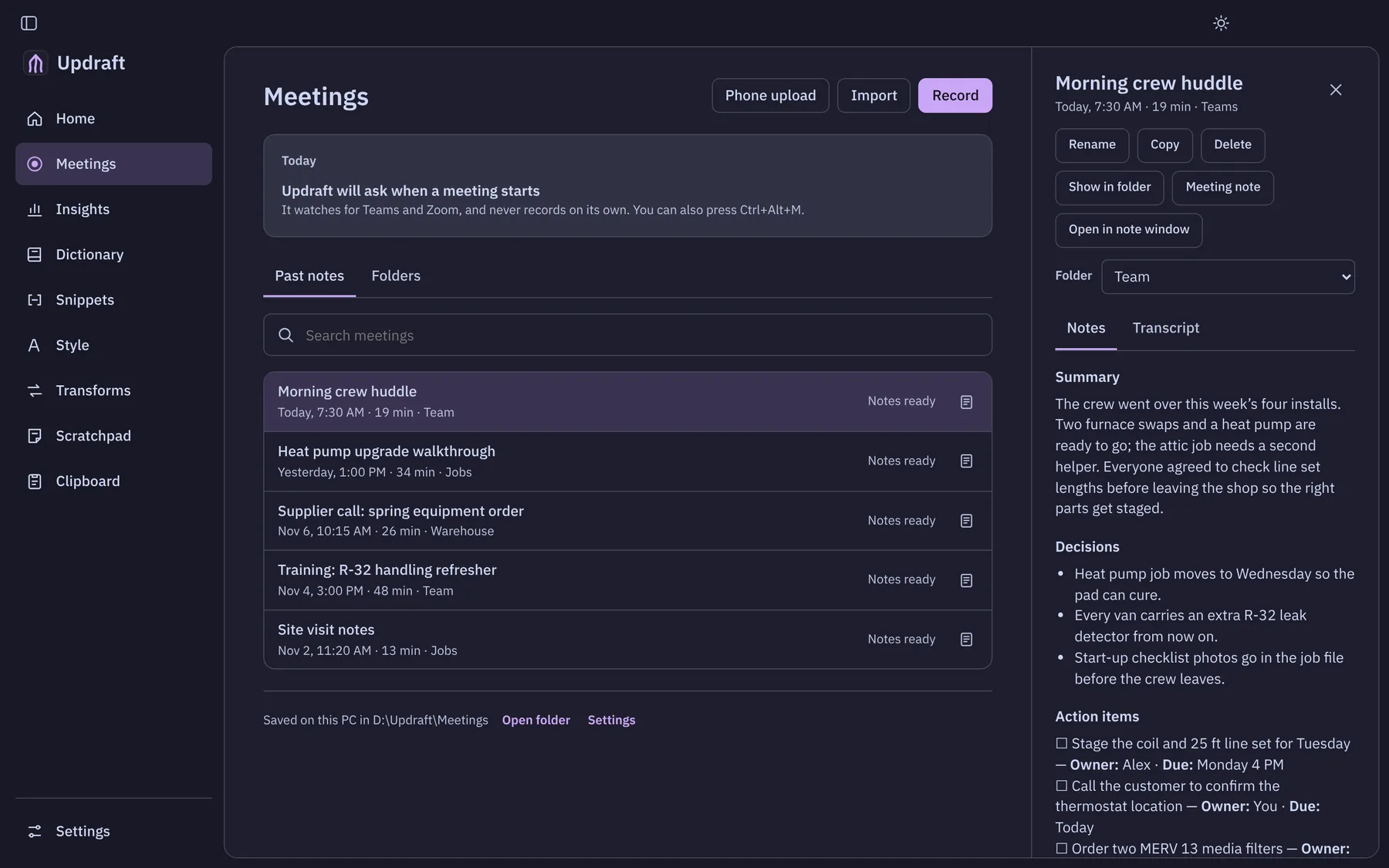
It notices the call. You get the notes. When Teams or Zoom starts using your mic, Updraft asks if you want to record. The speech is turned into text on your own computer. Afterward you get a full transcript plus a title, a summary, the decisions made, and action items with who owns them.
nothing records on its own
It only asks. It reads which apps are using the mic and never listens until you click Record.
you and them
Your mic and the call audio are recorded as two tracks, so the transcript knows who said what.
speaker labels
Optional, with an extra download. Tells the other people on the call apart after the meeting, and you can rename them.
play any line
Every transcript line has a play button, so you can hear exactly how something was said.
ask anything
Ask a question about a meeting and get an answer from that meeting’s notes.
in-person meetings too
Record on your iPhone and send it over by scanning a QR code on the same Wi-Fi, or import any audio or video file.
safe for long meetings
Audio saves to disk every second. If the PC crashes, you lose a second or two, not the meeting.
organized
Each meeting gets its own folder with the transcript and notes. Search past notes and group them into folders.
clipboard, notes and the rest
The little tools that add up.
clipboard history
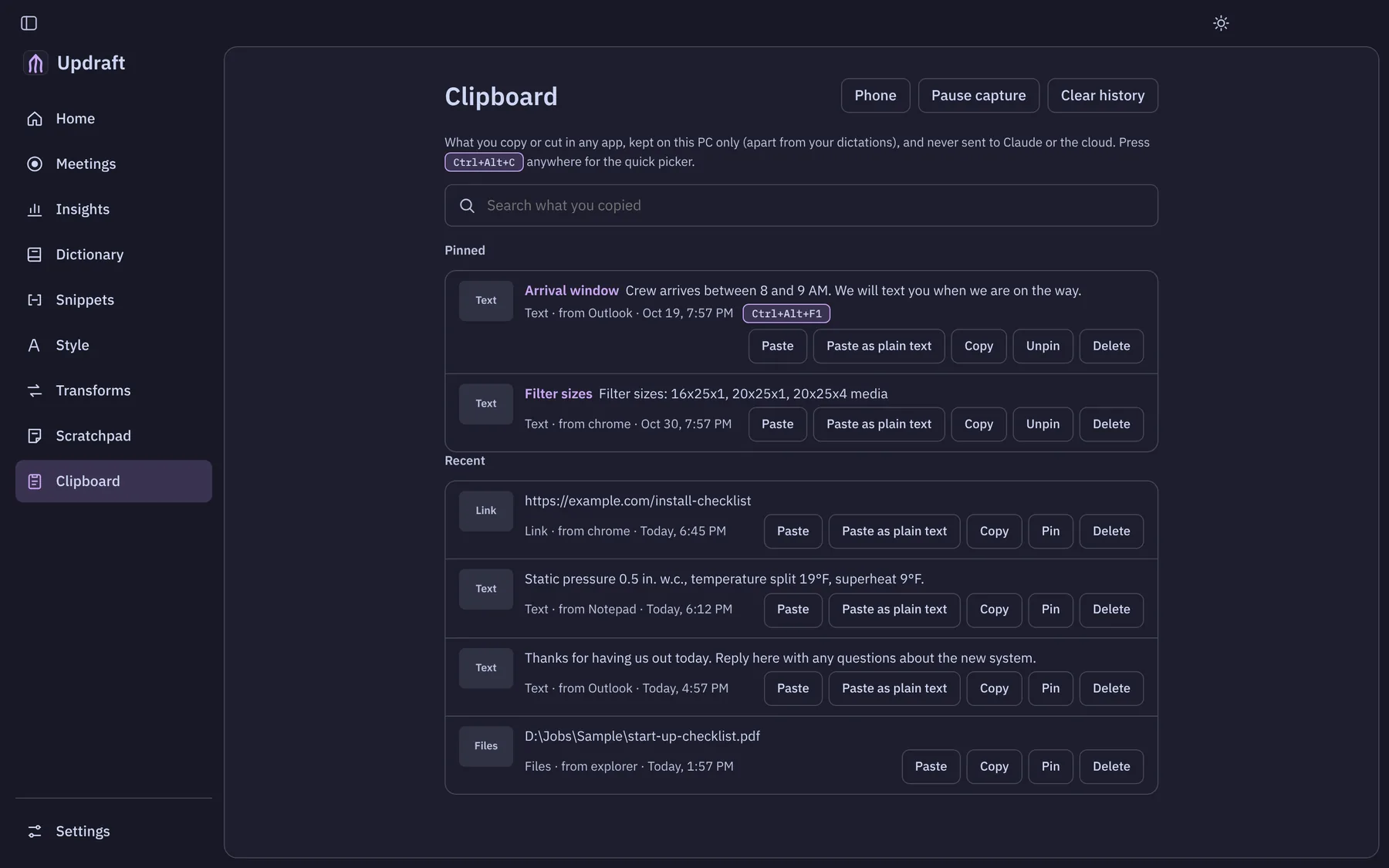
Keeps what you copy: text, links, images and files. Ctrl+Alt+C opens a quick picker right over your app.
phone to pc
Scan a QR code to send text between your phone and PC over your own Wi-Fi. No cloud, no app.
scratchpad
Quick notes you can type or talk into, saved on your PC.
insights
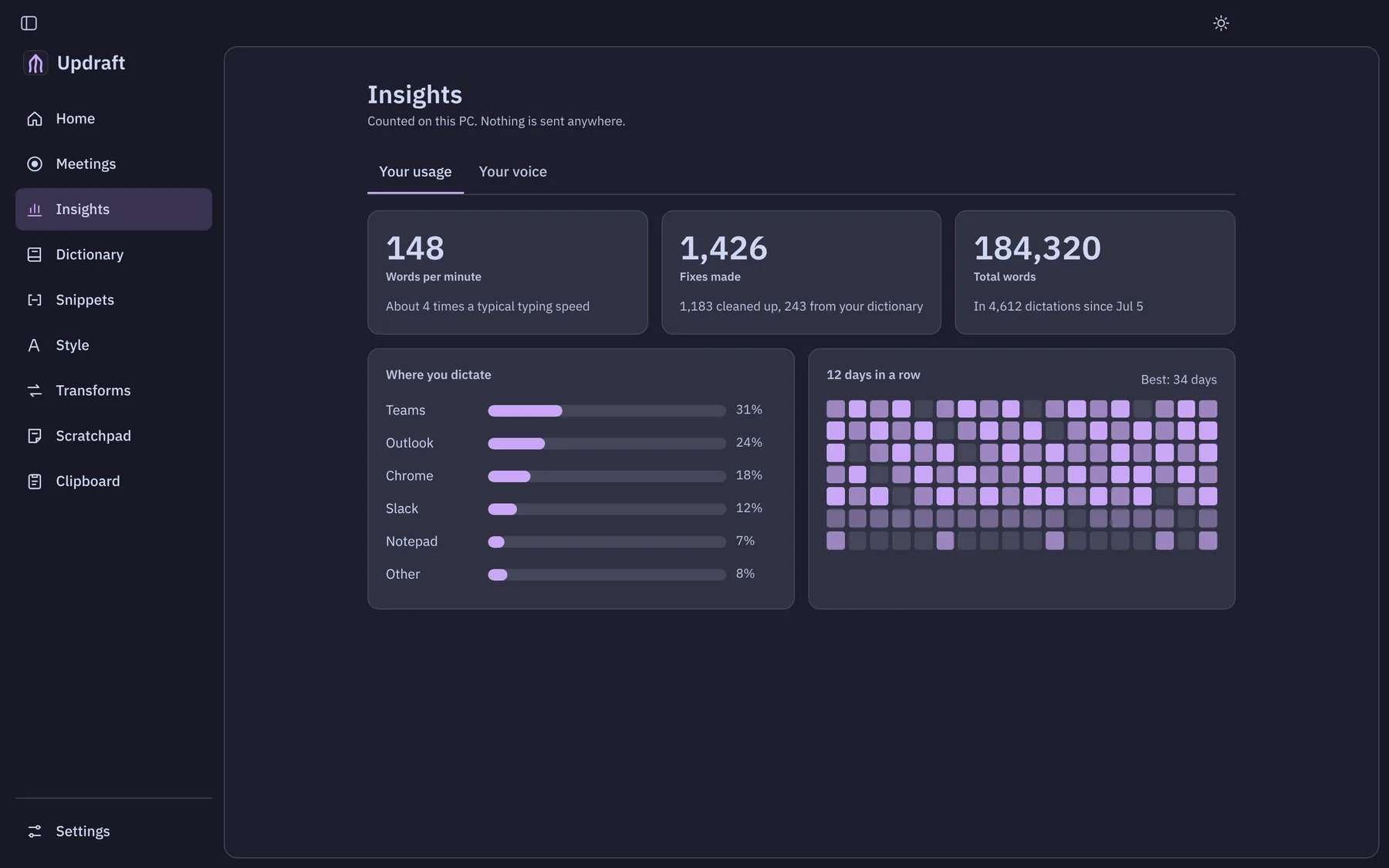
Words per minute, total words, a streak calendar, which apps you talk into most, and how many filler words it cut.
connectors
Let Claude Code, Claude Desktop or Gemini CLI search your meetings. Read-only, and off until you turn it on.
saves to obsidian
Meeting notes can land in your Obsidian vault as Markdown, automatically.
voice test
Read a few phrases aloud and it scores how well it understands you, so every update can be checked against the last.
make it yours
Catppuccin Mocha, light or dark themes, and a see-through window on Windows 11 if you like that look. Lives quietly in the tray.
audio never leaves your pc
Private by default.
audio stays local
Speech is turned into text on your PC. Audio is never uploaded.
ai is optional
The AI features are optional, use your own Claude key, and only ever send text.
encrypted on your pc
Your dictation history, notes and clipboard are encrypted and stored only on your PC. You pick how long they’re kept.
out of onedrive
Meeting files stay out of OneDrive by default, and it warns you before saving into a synced folder.
why i’m building it
I talk faster than I type, and I talk shop.
I wanted dictation that’s fast, accurate and never flaky, and that actually gets trade terms right. Speed and accuracy come before every other feature, and every change is measured against the last version so it never gets worse.
next up
More in the works.
Screen recording on the Mac. Screenshots with quick markup and copy-text-from-image. A speech model tuned to my own voice and HVAC jargon.
what’s new
0.7.7
A Shortcuts page lists every key combo with a search box, off until you turn it on. Settings is grouped into clear sections with a search of its own.
0.7.6
The slim pill stays on top of your other windows, and its buttons no longer shake when it opens.
0.7.5
Claude on your computer can search what you’ve copied: text, links and pictures, with passwords and codes hidden. Updraft can keep short clips of only your voice, on your computer, for tuning it to how you talk. Both are off until you turn them on.
0.7.4
A Recordings tab to play, rename and delete your screen recordings. A record button on the pill. Updates are now signed, and automatic updates are in testing.
0.7.3
ChatGPT on the web can search your meetings too, read-only. Mac screen recording is paused until it passes the speed check.
questions
The short answers.
Is Updraft free?
Yes. Updraft is a free download for Windows and Mac. The AI features are optional and use your own Claude key.
Does Updraft send my voice to the cloud?
No. Speech is turned into text on your own computer and audio is never uploaded. The optional AI cleanup sends only the text, never your voice.
What does Updraft run on?
Windows, and Apple Silicon Macs on macOS 13.3 or newer. Windows installs without admin. A few extras are Windows-only for now.
Can I dictate into Microsoft Word?
Yes. Updraft types wherever your cursor is: Microsoft Word, email, Teams or a text box on a website.
Can it transcribe Teams and Zoom calls and take notes?
Yes. When Teams or Zoom starts using your mic, Updraft asks if you want to record. Afterward you get a full transcript, a summary, the decisions made and action items with who owns them. Nothing records until you click Record.
How fast is the dictation?
With the optional live dictation on an NVIDIA GPU, words appear about 0.3 seconds after you say them.
Does it get trade terms right?
It is tested on HVAC terms and Daikin model numbers, and the dictionary lets you teach it names and trade words so they are spelled right.
Does it work in other languages?
Yes. Spanish and other languages, or it can detect the language on its own.
Where is my history kept?
Your dictation history, notes and clipboard are encrypted and stored only on your PC. You pick how long they are kept.